

At a Glance
- iPhone 15 users can limit charging to 80%-100% for longer battery life.
- A new Back Tap feature turns the back of any iPhone into a shortcut button.
- Live Voicemail lets you read messages in real time.
- Why it matters: These tweaks give you more control over performance, privacy, and daily convenience.
Your iPhone is a daily companion, but it can slow down or drain quickly if you’re not using its built-in settings. By adjusting a few options, you can keep your device fast, fresh, and tailored to your habits.
Location Privacy Settings
Disabling precise location for apps that don’t need it keeps your movements private. In Settings, choose an app, tap Location, and toggle Precise Location off. Only navigation and food-delivery apps should stay on.
Back Tap Functionality
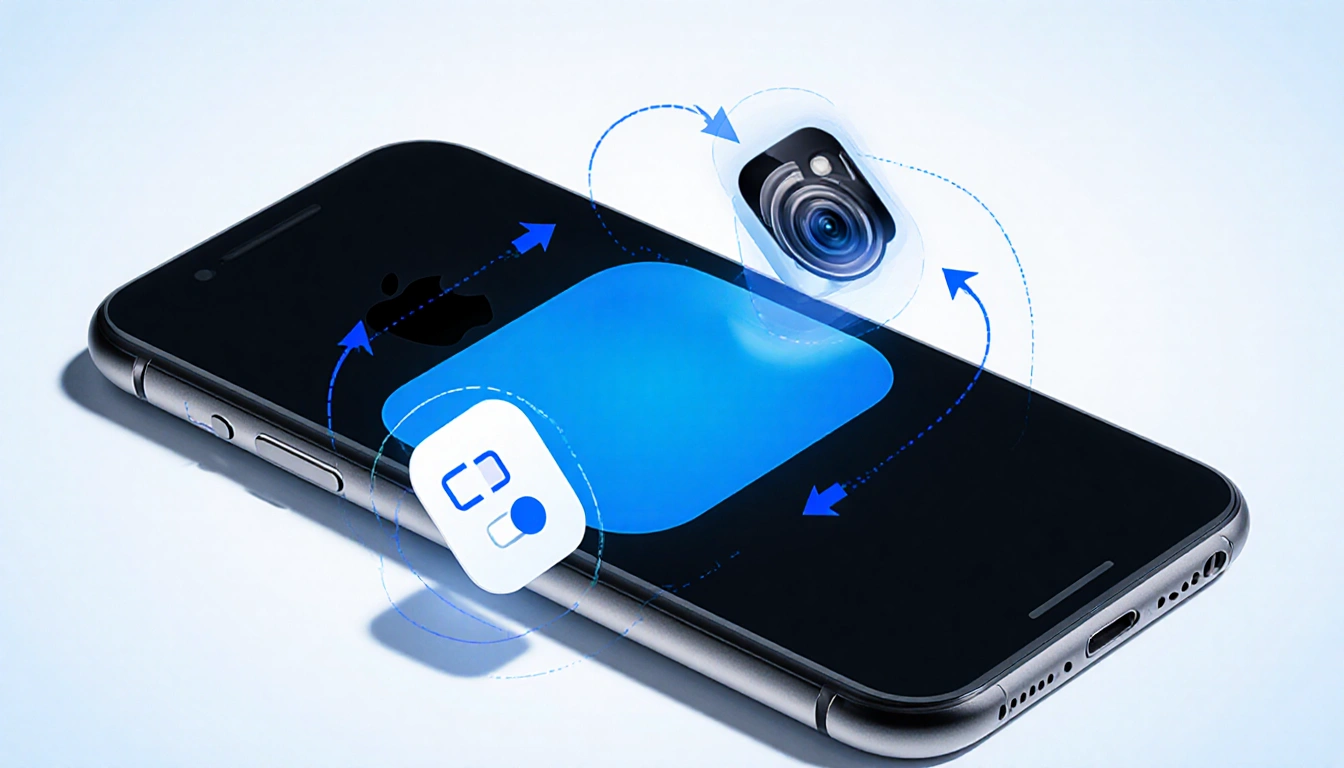
The back of older iPhones can be a hidden button. Go to Accessibility > Touch > Back Tap and choose a double or triple tap. Assign actions like opening the camera, enabling low-power mode, or running a shortcut.
Battery Charge Limit
On iPhone 15 and newer, Settings > Battery > Charging offers a slider from 80% to 100%. Selecting 95% reduces time spent fully charged, extending lithium-ion lifespan.
| Charge Limit | Effect | Typical Use |
|---|---|---|
| 80% | Faster daily use | Light users |
| 95% | Balance | Most users |
| 100% | Full range | Heavy users |
Live Voicemail Transcription
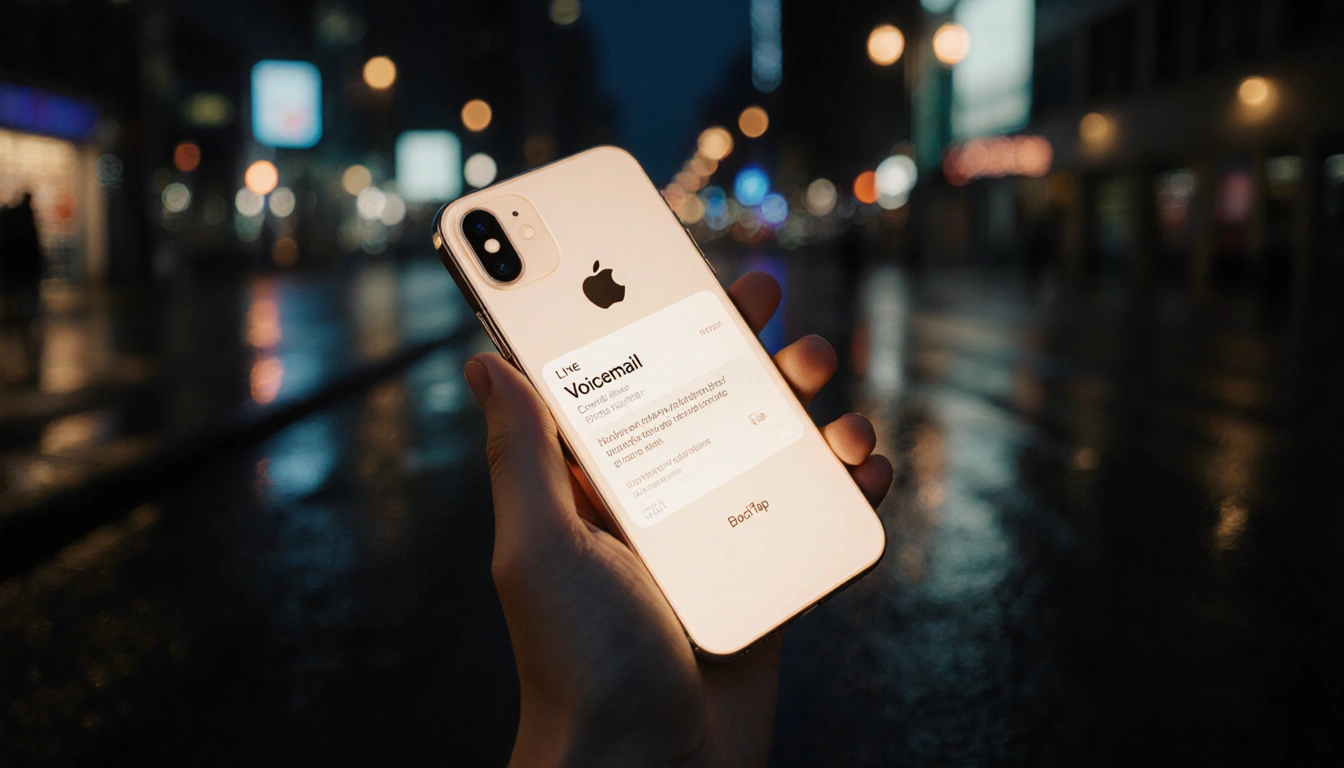
With iOS 17, Live Voicemail reads the message as it’s left. Enable it in Settings > Phone > Live Voicemail. You can decide to answer or ignore based on the preview.
Incoming Call Alerts
If you prefer the full-screen alert when your phone is unlocked, go to Settings > Phone > Incoming Calls and tap Full Screen. The banner style is the default.
5G Network Options
iPhone’s Smart Data switches between 5G and LTE automatically. To force LTE, go to Settings > Cellular > Primary > Voice & Data and select LTE. To stay on 5G, choose 5G On.
Data Mode on 5G
Choose how much data 5G uses. Settings > Cellular > Primary > Data Mode offers:
- Allow More Data on 5G – high-quality video, FaceTime, updates.
- Standard – balanced use.
- Low Data Mode – saves data.
Home Screen App Management
New apps clutter the home screen. Settings > Home Screen & App Library > App Library Only keeps only the App Library visible. Swipe left to find apps.
Face ID with Mask
Face ID stops working when you wear a mask. On iOS 15.4 or later, enable Face ID With a Mask in Settings > Face ID & Passcode. An Apple Watch can also unlock the phone.
Safari Address Bar Position
Safari moved the address bar to the bottom. To restore it, go to Settings > Safari and choose Single Tab under Tabs.
Lock Screen Access Features
Unlock the lock screen to access Control Center, Wallet, or reply to messages. Settings > Face ID & Passcode > Allow Access When Locked lets you toggle each feature.
Default Browser & Mail Apps
Choose your preferred browser or mail client. In Settings, tap the app (e.g., Chrome or Outlook), then select Default Browser App or Default Mail App.
Notification Previews on Lock Screen
By default, content is hidden until you unlock. Settings > Notifications > Show Previews > Always reveals message text. Choose Never to keep previews hidden.
HDR Video Recording
Turn off HDR video to record in standard dynamic range. Settings > Camera > Record Video > toggle HDR Video off.
Dynamic Wallpaper Settings
Enable Dark Appearance Dims Wallpaper in Settings > Wallpaper. Select a wallpaper that offers both light and dark versions; it switches automatically.
Dark Mode Battery Savings
Dark mode reduces screen power use. Settings > Display & Brightness > Dark or tap the icon in Control Center.
Focus Mode Customization
Manage notifications with Focus. Settings > Focus lets you choose built-in modes like Do Not Disturb, Sleep, or create custom ones. Schedule them for automatic activation.
Text Size Adjustment
Make text larger or bold. Settings > Display & Brightness > Text Size slider; toggle Bold Text for extra readability.
Alternate Face ID Appearance
If Face ID struggles, enroll an alternate appearance. Settings > Face ID & Passcode > Set Up An Alternate Appearance.
Auto-Brightness Control
Disable auto-brightness for manual control. Settings > Accessibility > Display & Text Size > toggle Auto-Brightness off.
Privacy Settings Overview
Review app permissions in Settings > Privacy. Toggle location, camera, microphone, and health access per app.
Control Center Customization
Add or remove shortcuts. Settings > Control Center lets you tap the red minus or green plus to adjust the panel.
Notification Summary Scheduling
Bundle non-urgent alerts. Settings > Notifications > Scheduled Summary allows you to pick a time for summaries.
Siri Voice Selection
Choose Siri’s voice. Settings > Siri & Search > Siri Voice; options include gender-neutral voices.
Key Takeaways
- Battery life improves by limiting charge to 95% and using Dark Mode.
- Privacy is enhanced by turning off precise location and reviewing app permissions.
- Convenience rises with Back Tap, Live Voicemail, and Face ID with mask.
These settings let you keep your iPhone running smoother, longer, and more in tune with your daily life.