
At a Glance
- You can disable Find My before giving away an iPhone.
- Stolen Device Protection must be turned off first.
- Factory reset removes personal data for security.
- Why it matters: Turning off Find My and cleaning the device protects your privacy and ensures the new owner can use the phone without lockouts.
If you’re upgrading or gifting an iPhone, Apple recommends disabling Find My and removing all personal information. The Activation Lock feature can block new users unless you turn it off, and a factory reset clears your data. Follow these quick steps to safely hand over your device.
Turning Off Find My
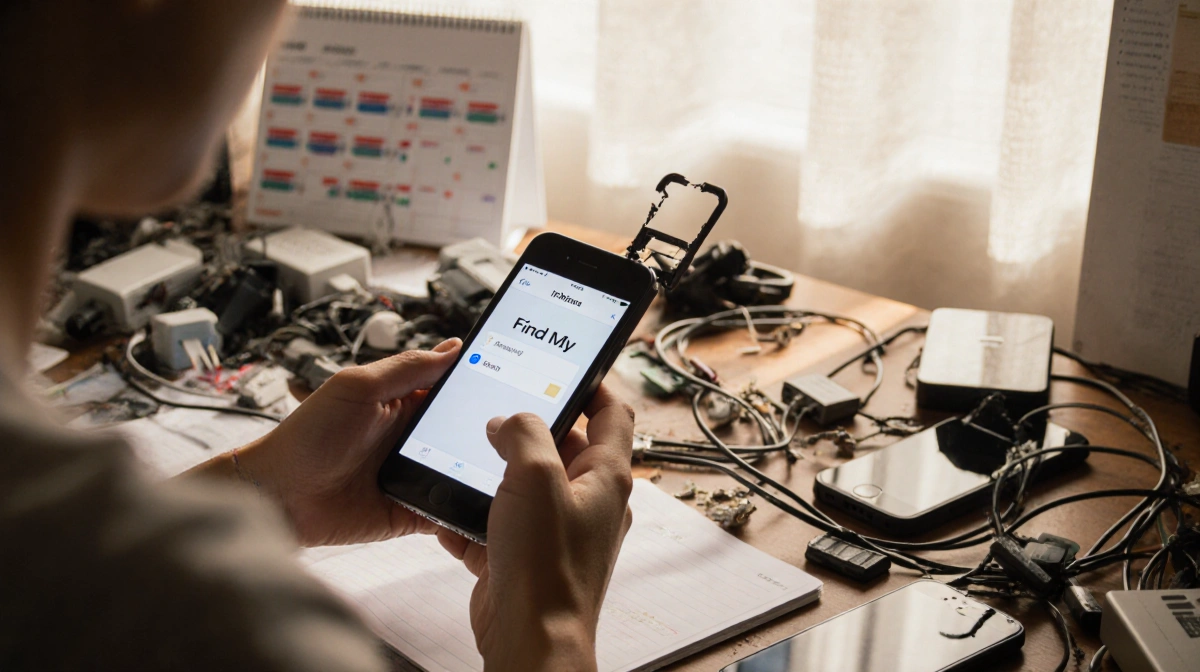
Find My keeps your iPhone trackable and protects it from unauthorized use. To deactivate it, open Settings, tap your name, select Find My, then toggle off Find My iPhone.
- Open Settings.
- Tap your name at the top.
- Tap Find My.
- Tap Find My iPhone.
- Toggle off.
Disabling Stolen Device Protection
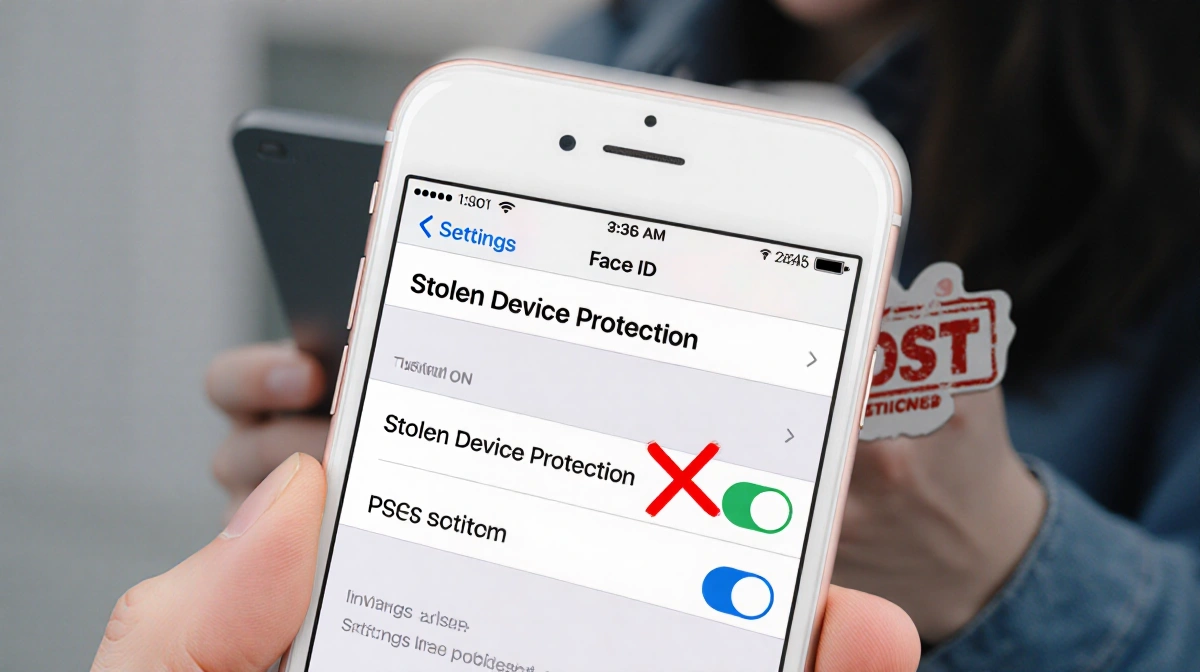
If Stolen Device Protection is enabled, Find My cannot be turned off. You need to disable it in Settings under Face ID & Passcode.
- Open Settings.
- Tap Face ID & Passcode.
- Enter passcode.
- Tap Stolen Device Protection.
- Toggle it off.
Clean Up Before Handing Over
After turning off Find My, erase all content to prevent any remaining data from being accessed. A factory reset restores the phone to its original state.
- Go to Settings > General > Reset > Erase All Content and Settings.
- Confirm and wait for the device to restart.
- Verify the device shows the initial setup screen.
Key Takeaways
- Disable Find My before gifting or upgrading.
- Turn off Stolen Device Protection if it’s on.
- Perform a factory reset to wipe personal data.
By following these steps, you ensure a smooth transition for the new owner while keeping your personal information secure.