

At a Glance
- Adjusting router antennas and node placement can dramatically raise signal strength
- Firmware updates improve compatibility, stability and overall Wi-Fi performance
- Isolating bandwidth-heavy devices prevents network slowdowns
- Why it matters: Simple settings changes can turn sluggish connections into reliable, fast home networks
Slow-loading streams and dropped video calls often stem from router issues that cost nothing to fix. Caleb R. Anderson tested common adjustments that deliver faster, steadier connections without new hardware.
Reposition for Signal Gains
Start with antenna angle. External antennas can be swiveled and rotated; even a slight shift can raise signal strength in rooms that once showed one bar. Tower routers and mesh units hide antennas inside, so tilt or rotate the entire device and recheck the signal.
Mesh owners frequently push satellite nodes too far from the main router. Treat the mesh as a backbone running through the center of the home; keep each node within two walls or 30 ft of another powered unit for seamless hand-offs.
Clear Common Obstacles
Physical blockers kill speed faster than distance. Keep the router away from:
- Metal filing cabinets or concrete pillars
- Fish tanks and large mirrors
- Kitchen microwaves, baby monitors and cordless phones
- Other Wi-Fi routers, Bluetooth speakers or wireless chargers
In apartments, neighboring routers crowd the airwaves. Move the router to an interior wall, away from shared corridors, and raise it 6 ft off the floor to dodge competing signals.
Pick the Quietest Channel
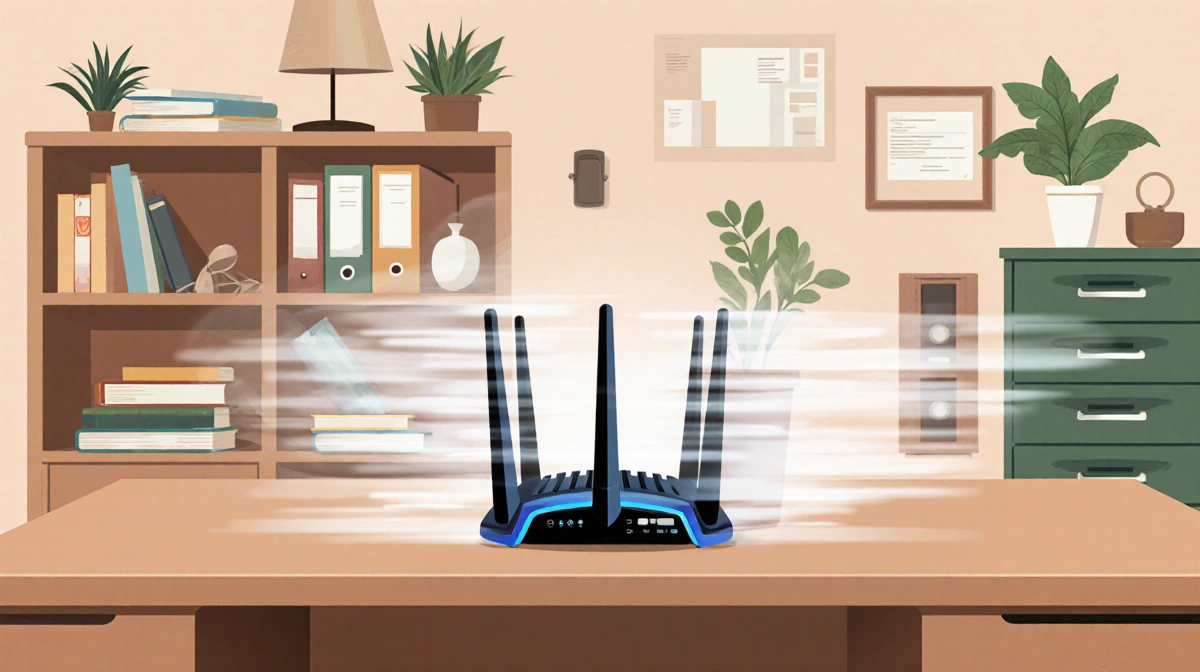
Routers auto-select bands, yet manual tweaks help in dense buildings. Split the 2.4 GHz and 5 GHz bands if the setting exists, then assign a different channel to each. Use a free analyzer such as Netspot to view local congestion and choose the least-used channel in both bands.
Run a Speed Test
Type “speed test” into any browser and run the built-in check. Compare the result to the plan you pay for. Many mesh apps also test direct from the router; if the router shows full speed but a laptop crawls, the issue is the device, not the network.
Sluggish browsing can stem from a bloated cache or rogue plug-ins. Flush the browser cache, disable heavy extensions and run a malware scan before blaming Wi-Fi.
Update Firmware First
Enable automatic firmware updates inside the router or mesh app. Manufacturers push fixes that raise throughput, patch security holes and smooth roaming between nodes. A five-minute update can double throughput on older units.
Reset When Settings Backfire
Prior tinkering can throttle performance. If download speeds dropped after changing QoS, port forwarding or parental controls, revert each tweak one at a time. When the original settings are forgotten, perform a factory reset and rebuild only the essentials.
Hunt the Hidden Bandwidth Hog
Intermittent slowdowns often trace to a single device. Power down gadgets in turn and rerun a speed test after each. Common culprits include:
- Security cameras uploading 4K video to the cloud
- Game consoles downloading large patches in rest mode
- TVs streaming Dolby Vision while backing up photos
Limit the hog by:
- Dropping camera resolution to 1080p while home
- Scheduling cloud uploads for overnight hours
- Enabling motion-only recording instead of 24/7
Check the SSID and Password
If one phone or smart plug refuses to join, verify the exact network name and password. Avoid spaces or special characters in the SSID; some IoT chips fail on punctuation.
Legacy devices may support only 2.4 GHz or older security modes. Create a separate IoT network on 2.4 GHz with WPA2 if the main network runs mixed WPA3/WPA2.
Quick Troubleshooting Checklist
- Reboot modem, router and device in that order
- Move the router higher and farther from interference
- Update firmware and device drivers
- Split bands and assign unique channels
- Isolate bandwidth-heavy devices or cap their speeds
Apply each step, test for improvement, then move to the next. Most users see measurable gains without spending a dollar on new hardware.