

At a Glance
- Free iPhone storage without deleting photos or videos
- Move originals to iCloud with Optimize Storage
- Offload large apps to free space for updates
- Why it matters: More room lets you install iOS updates, capture new memories, and download apps
If your iPhone feels cramped, you can clear up space without losing photos or apps. By using built-in iOS settings, you can move full-resolution media to iCloud, offload rarely used apps, and even upgrade your iCloud plan-all without deleting anything you care about.
Optimize Photos and Videos
Full-resolution photos and videos can fill an iPhone quickly. Turning on Optimize iPhone Storage moves originals to iCloud and keeps smaller versions on the device; first enable iCloud Photos, then toggle the optimize setting in Settings > Photos. Once the process finishes, the device holds only low-resolution copies while the full files stay in the cloud.
- Enable iCloud Photos in Settings > Photos
- Turn on Optimize iPhone Storage
- Wait for the optimization to complete
- Download a file by tapping it in Photos if you need the full resolution
| iCloud Plan | Storage | Price (US) |
|---|---|---|
| 50 GB | 50 GB | $1 / month |
| 200 GB | 200 GB | $3 / month |
| 2 TB | 2 TB | $10 / month |
If you need more space, upgrading to a paid plan keeps your photos safe and frees device memory.
Offload Large Apps
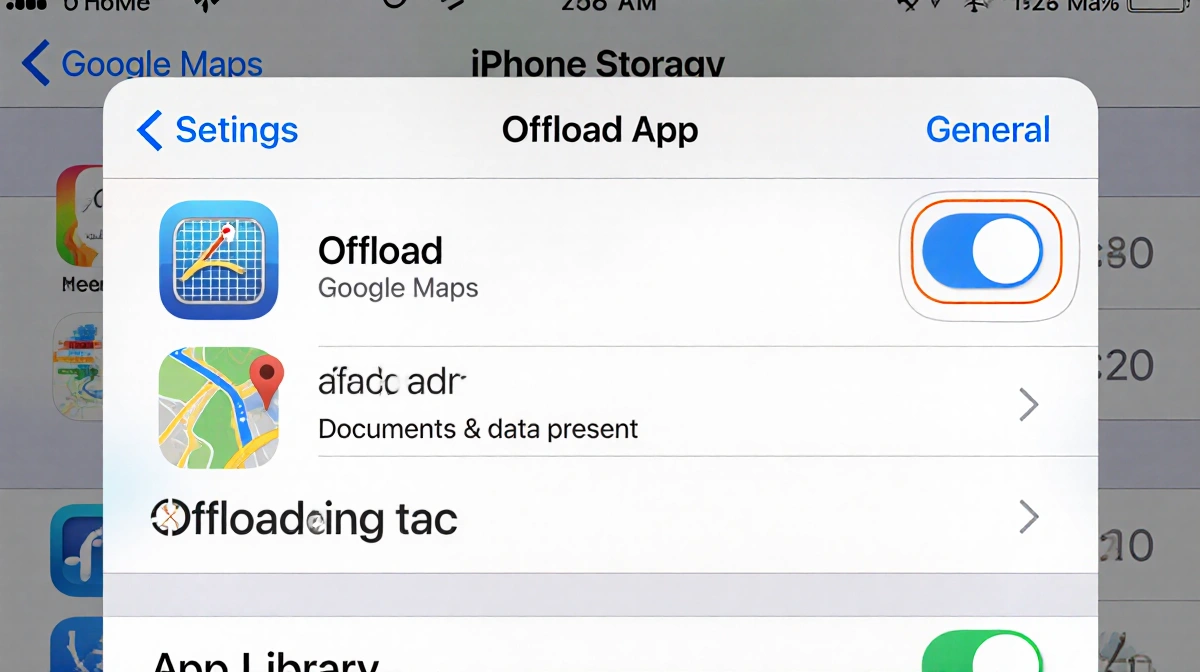
Apps you rarely use can sit on your iPhone and consume space; offloading removes the app binary but keeps its documents and data, letting you reinstall it later. To do so, go to Settings > General > iPhone Storage, tap an app, and select Offload App, then tap the icon again to download the full app from the App Library.
- Open Settings > General > iPhone Storage
- Identify apps with large sizes
- Tap an app and choose Offload App
- Reinstall by tapping the icon in the App Library
Upgrade iCloud Storage
If your iCloud quota is full, you’ll hit limits on photo uploads and backups. To add space, go to Settings > {your name} > iCloud > Manage Account Storage > Buy More Storage. Choose a plan that matches your needs and follow the prompts.
- Navigate to Settings > {your name} > iCloud > Manage Account Storage
- Tap Buy More Storage
- Select a plan and confirm the purchase
Key Takeaways
- Optimizing photos moves full-resolution files to iCloud, freeing device space.
- Offloading apps keeps data while removing the app binary, saving gigabytes.
- Upgrading iCloud storage lets you store more media and backup data without deleting anything.
A simple set of iOS tweaks can give your iPhone dozens of gigabytes back, letting you keep every photo, video, and app you love while staying ready for the next iOS update.